It is common to need to issue invoices related to the previous year during the first two months of the new year. This article guides you through using the previous year's numbering and dating your documents as of December 31st.
⚠️ Important Warning ⚠️
The support team is not authorized to modify an invoice that has already been issued.
You cannot modify the date or the numbering after validation.
Every generated invoice is final. Please check your information carefully before clicking "Next".
For this procedure to work, your invoicing sequence must be configured to reset to 1 at the beginning of each year.
Go to a confirmed file within your interface. Click the Generate Invoice button.
1. Changing the annual sequence
By default, the tool suggests the numbering for the current year (e.g., 2026).
Locate the Default numbering section.
Click the Previous numbering button.
Observation: You will see the invoice number automatically switch to the previous year's sequence (e.g., 2025).
2. Modifying the date
Once the numbering is adjusted:
Manually change the invoice date.
Select December 31st of the previous year.
3. Finalization
Click Next and follow the usual steps to issue your document.
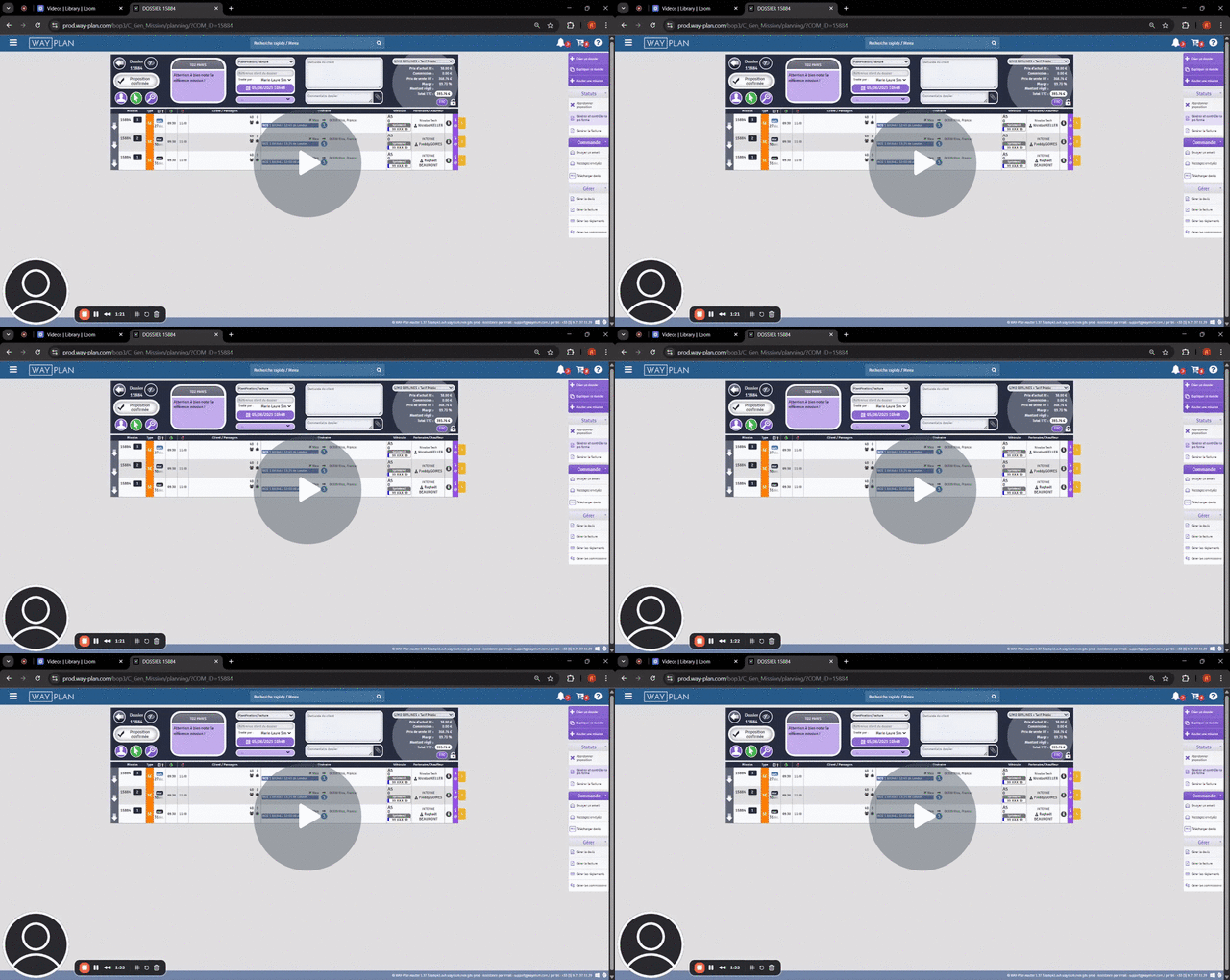
Video Summary
How to invoice using the previous year's numbering 📅
Comments
0 comments
Please sign in to leave a comment.